Dealing with Laptop Standby Power Mode – Part 1
Often as you automate things, other nifty glitches you didn’t see coming creep up. As I’ve been improving and streamlining our imaging process, I removed a portion of the OSD process that would automatically log into the machine after imaging for a timed period. This caused some issues and it had timed reboots and could potentially effect an on-going installation, however it worked great for any applications that required a user to be logged in to install. I removed that part of the process awhile back, and on the last large refresh we did, we encountered a new issue as a result. Our laptops were going into standby mode, since that is the default power configuration for a Laptop in Windows XP whenever a user has NOT logged into the machine, ever. If you log into the machine, then the game changes. However, for our scenario, we were imaging machine(s) and no one would logged into that machine be it a physical person or a scripted login after imaging. So that presents 2 issues.
Issue #1
A normal WOL request will not wake a device from stand-by or hibernate mode without first configuring that network device to allow that device to bring the computer out of stand-by or hibernate mode. Oops. Now i can’t wake up my machines once they do go to sleep.
Issue #2
Once you have resolved the issue of being able to bring the devices out of stand-by mode, then you ideally want to keep those machines up indefinitely or at least until the application installs complete. So then you need to either have a group policy or “something” that configures the laptop to stay on after being imaged. I’ll cover this issue in Part 2.
Ok, so what do we do about stand-by mode?
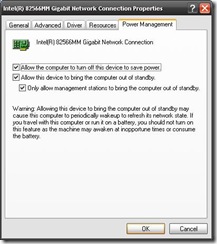
I was given a script from a friend, so I credit the original author of this script for the script, however I don’t know who that actual author is. So if you are him/her, thank you! :) This script is a vbscript that identifies the network adapters on the machine and configures them to allow them to bring the device out of stand-by mode. As in the screenshot below.
This script needs to be created as a SMS package and the configured to run unattended.
Now since I use MDT to run our OSD process, rather than waiting for the package to come down through normal software distribution processes, and because i want to ensure that this package runs as soon as the imaging process is done, I deploy the application through customsettings.ini. This allows for the use of the SMS distribution points and for the execution history to be a valid SMS application, well because it is coming from SMS, but also allows for an instantaneous install after the imaging process has completed. Essentially it becomes part of the imaging process.
In my case at this point i only want to target laptops with this script, so i’m going to take advantage of the chassis type query that is available within customsettings.ini
So the necessary settings for this to work in customsettings.ini are as follows, now i have stripped this down to the absolute basics needed to do this type of query to show you. I utilize this and many other queries to assign packages through customsettings.ini.
=================================
[Settings]
Priority=ByLaptopType
[ByLaptopType]
Subsection=Laptop-%IsLaptop%
[Laptop-True]
Packages001=ABC0001:WOL Standby Config Script
=================================
Your “Packages001=ABC0001:WOL Standby Config Script” is basically Packages001, Packages002, how ever many you have, followed by the packageID:Program
So basically:
Packages001=PackageID:Program
Pacakges002=PackageID:Program
This method allows me to install the script as part of the imaging process on the tail-end ensuring that my network adapters are configured to allow WOL just in case they do go into stand-by on me, or if the user puts the computer into stand-by.
Below is the attached script for configuring the network adapters.
I will covering keeping the machines awake in Part 2.