Windows 7 – Auto logon
From the archive (2009). Written for the tools of the time, so some details may be out of date.
As i was configuring Windows 7 at home, one of the these i always liked to do for my personal computer is configure auto-login. I’m not too worried about anyone getting at my machine, so i prefer to have it auto logon for convenience sake.
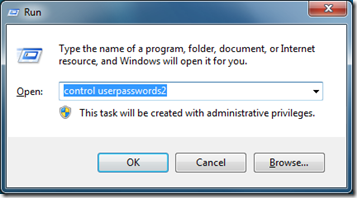
First you will need to open up the hidden user control panel using the below command:
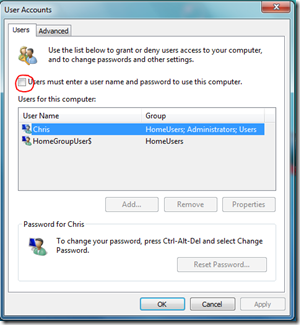
Next you will want to select the user account you want to auto logon and then clear the checkbox for “Users must enter a user name… “
Next click “Apply”, which will bring up the following box to enter the auto logon password:
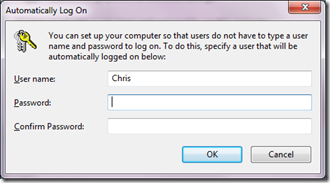
Enter your password:
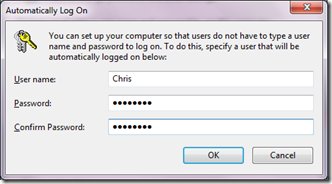
That’s it, you have now configured auto logon for Windows 7!
-Chris