Microsoft Deployment Toolkit 2010 – LTI – Making Applications Mandatory
This topic has come up quite a few times on the forums lately so I wanted to create a post covering how to do this. The most common requests are to make applications mandatory for all task sequences, or for specific task sequences. Be sure to also read Johan’s post here as he has previously covered setting variables per task sequence. We also can just configure applications to be selected by default, but allow them to be unchecked.
Making an application mandatory for all task sequences:
To make an application mandatory for all task sequences, we want to set the MandatoryApplications variable in customsettings.ini
First we will need the GUID of the application we want to make mandatory, this can be found on the application properties tab
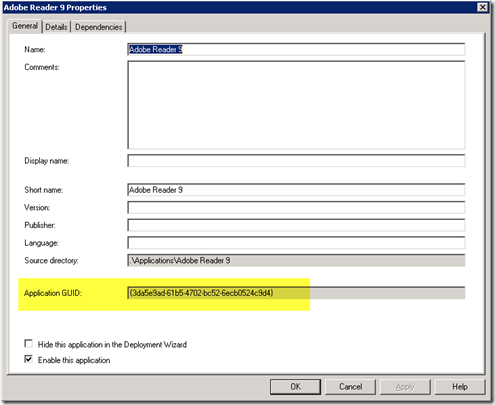
Next we will add a MandatoryApplications variable to our [Default] section of the customsettings.ini
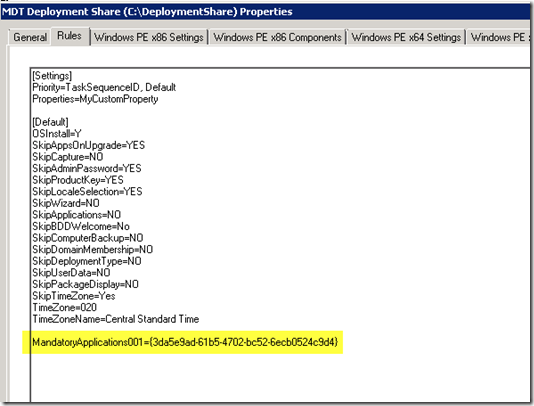
If you wanted to add more, then you would just use MandatoryApplications001, MandatoryApplications002 and so on.
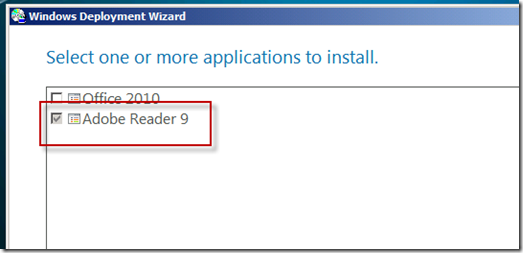
If you run the LTI wizard, you will now see that Adobe Reader 9 in this example is now checked by default and grayed out:
Making applications mandatory by task sequence:
Another common request is to make applications mandatory for a specific task sequence. In order to do this, first we have to add some items to our customsettings.ini and change the way our task sequence gathers the data.
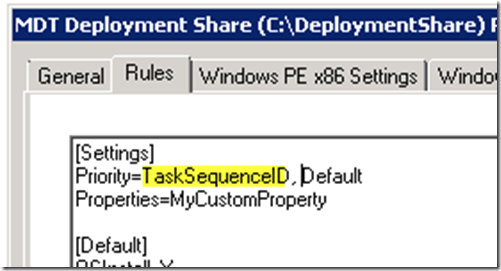
First lets add the TaskSequenceID to the Priority line:
Next we will need to find the ID of the task sequence we want to work with:

And then we need to add that to our customsettings.ini as well. Here we’ve added Office 2010 as a mandatory application for my Windows 7 build task sequence.
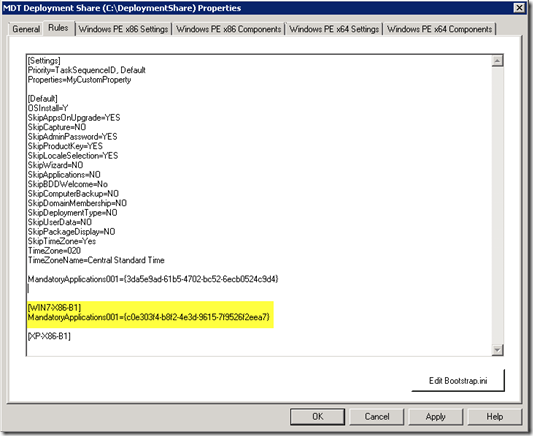
We also need to change the Gather step on your task sequence to “Gather local data and process rules” and specify “customsettings.ini” for the rules file.
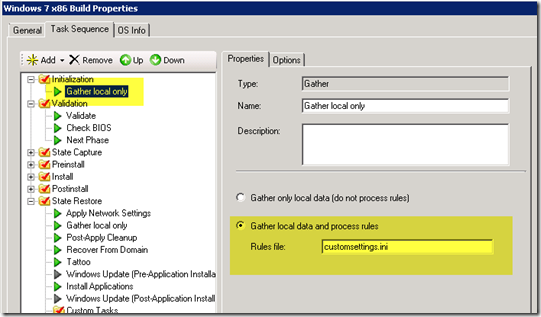
Making an application selected by default, but allow the user to uncheck
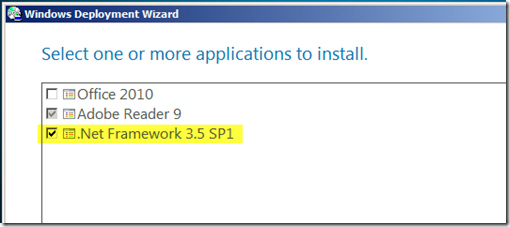
The other common request we haven’t covered yet is making an application selected by default, however with the ability to uncheck it. The variable “Applications” will handle that request. In this example we will add .Net Framework 3.5 SP1 as a pre-selected application.
First we need our application GUID again:
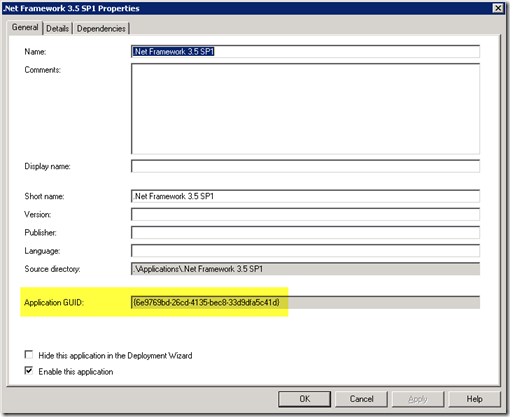
Then we need to a new item called “Applications” to our customsettings.ini:
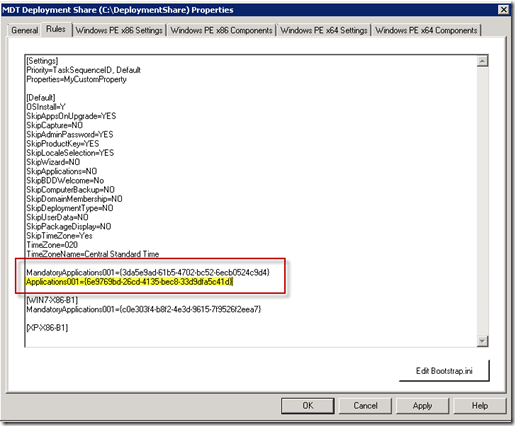
Now when we run the LTI wizard, we will see that the .Net application is selected by default, but we do have the ability to uncheck the application:
Hope that helps.