Configuration Manager–Installing ConfigMgr R2 Client Status Reporting
Select “Client Status Reporting” from the main installation wizard under the “Additional Content” section. You can also browse to the “Client Status Reporting” folder on the CD as the install will take you there anyways.
[image unavailable]
Launch the “Clientstatusreporting” MSI.
[image unavailable]
Select “Next”.
[image unavailable]
Select “I accept the license agreement” and select “Next”.
[image unavailable]
Select the destination folder and select “Next”.
[image unavailable]
Select “Next” to start the installation.
[image unavailable]
Select “Finish”.
[image unavailable]
You will have a new menu option in the Start menu. Launch the “Configure Client Status Reporting” to finalize the installation.
[image unavailable]
On the “Site Settings” tab, you will need to configure the SQL server and instance, along with what account you want the Client Status reporting to run under. I typically will configure it to use the local system account.
[image unavailable]
On the Options tab, you will want to select the “Update Configuration Manager 2007 site database with inactive client information”, you will also want to configure the client activity periods for your environment.
[image unavailable]
On the Schedule tab, you will want to enable the Client pulse settings along with the Client ping settings. You will also want to configure the schedules for those settings.
[image unavailable]
[image unavailable]
Importing the Client Status reports into Configuration Manager
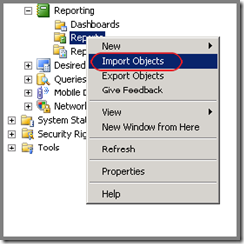
Select “Import Objects” on the Reporting node.
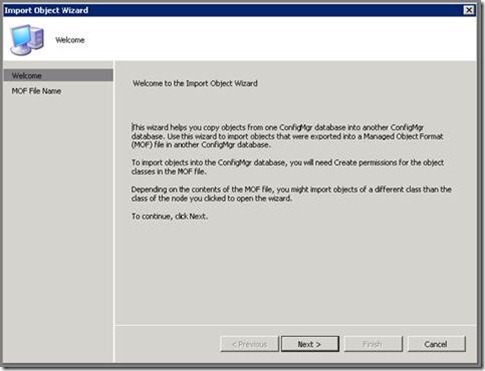
Select “Next”.
Select “Browse”.
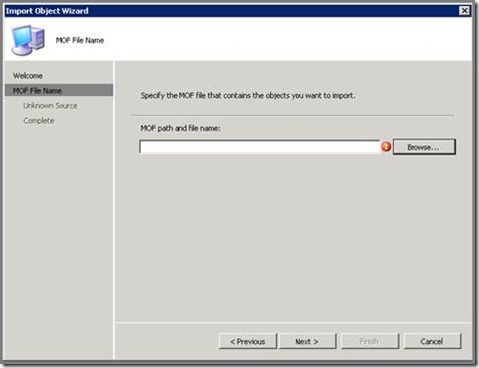
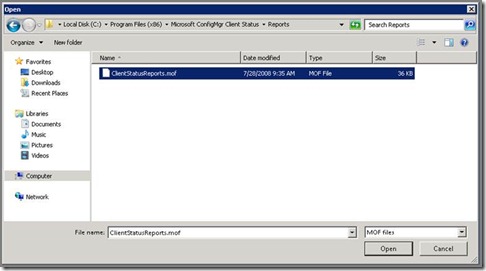
Browse to the path you see below. Then select “Open”.
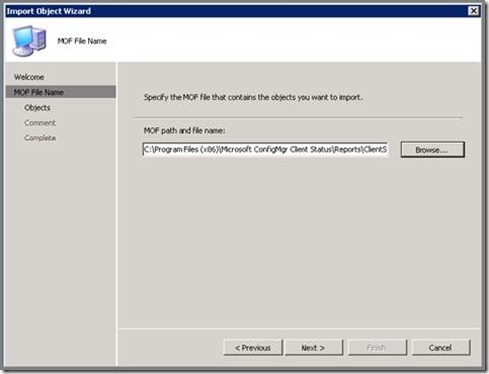
Select “Next”.
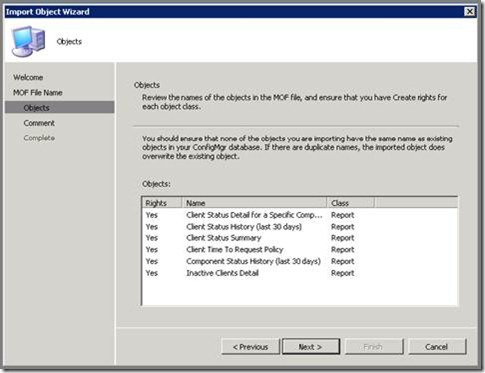
Select “Next”.
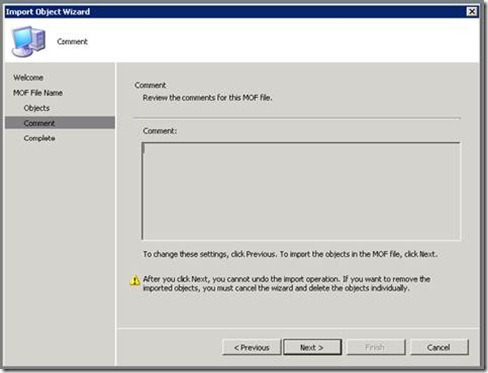
Select “Next”.
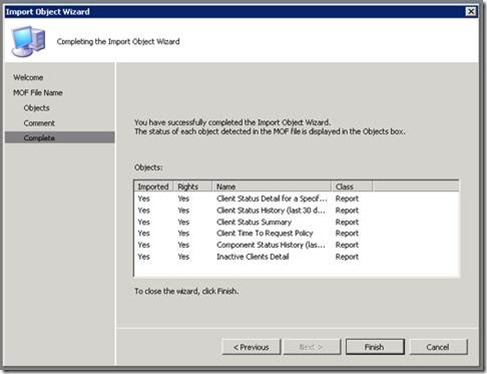
Select “Finish”.
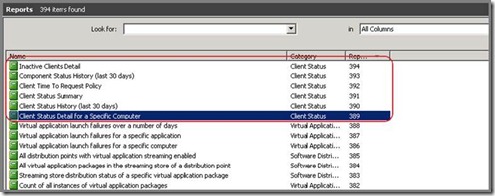
After the reports have been imported, you can see them listed in the reports folder.