ConfigMgr–Building A Reference Image-Installing Hotfixes/Updates Offline
If you build your reference image using Microsoft Deployment Toolkit Lite-Touch, it’s fairly easy to incorporate OS level hotfixes and updates offline, some good examples are the following:
These types of updates aren’t available typically from Microsoft Update, so your normal Software Update steps in ConfigMgr don’t do the trick. When we use Lite-Touch, we have a “Packages” node where we can import these types of hotfixes, updates or Language packs and they will be installed automatically for us by the ZTIPatches script.
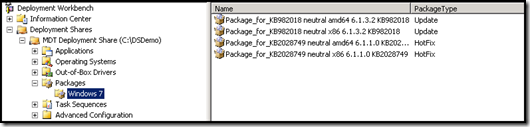
What I’ve seen most people do in ConfigMgr is they will create an individual package for each hotfix and then install them like an Application in the Task Sequence using a wusa.exe command line.
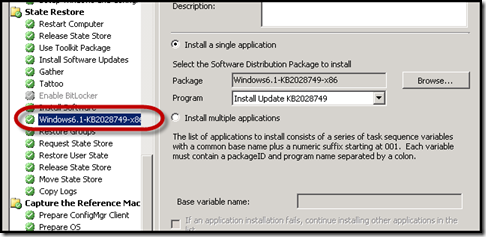
This works just fine, however, you are installing the hotfixes while in the full OS and you need multiple steps for each update. I’m sure you could come up with a fancy way to use a single step to install multiple updates via a script, but, MDT already can do that for you, so why reinvent the wheel!
Installing Multiple Hotfixes/Updates Offline Using a MDT Task Sequence
Using a MDT integrated Task Sequence, we can install multiple hotfixes/updates in a single step for multiple architectures using a single package.
First we need to get the CAB files for the hotfixes/updates we want to work with. You can use your favorite extractor to get the files out of the MSU’s. 7-Zip did the trick for me and allowed me to do multiple files at once.
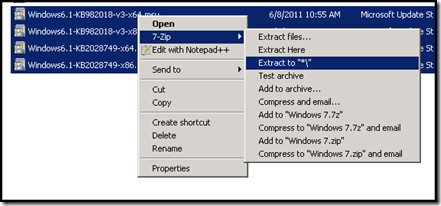
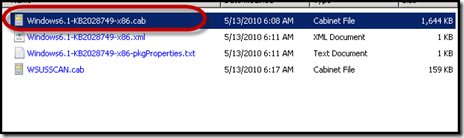
Once extracted, you only need the CAB, so I removed the other files from the folder.
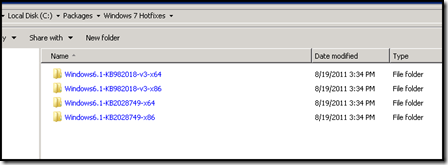
Next I created a package source folder called “Windows 7 Hotfixes” and placed the extracted files in that folder. This folder contains both x86 and x64 hotfixes.
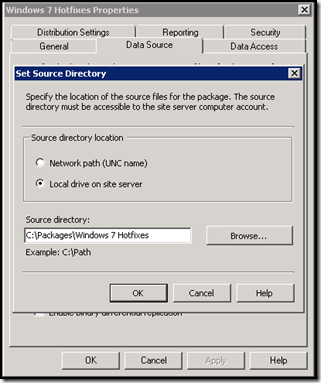
Create a Package that references those source files and distribute it to your Distribution Points.
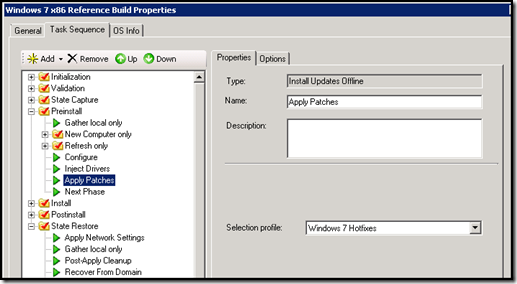
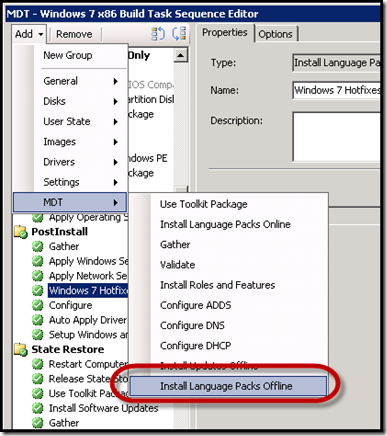
Next, open up your Build and Capture Task Sequence. We want to add a new action to our Post Install phase, “Install Language Packs Offline”. This step actually calls ZTIPatches.wsf, so it’ll do what we want, just like in MDT Lite-Touch.
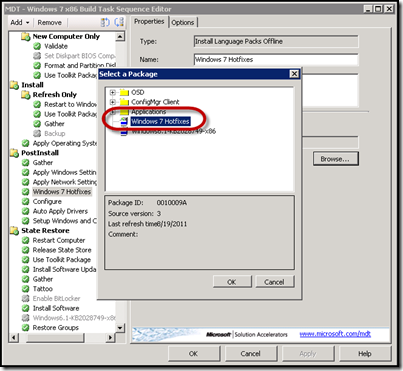
Select the Package you created earlier called “Windows 7 Hotfixes”.
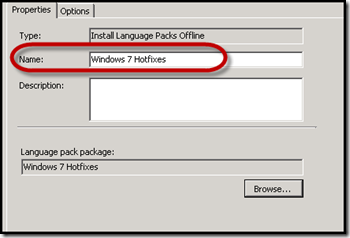
Name the Task Sequence step appropriately.
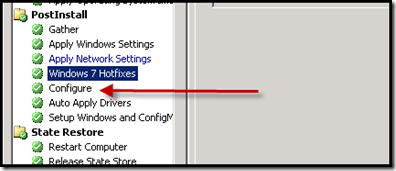
Make sure your Task Sequence step is BEFORE the Configure step in the Post Install section.
Now when you run your Build and Capture Task Sequence, we will install the hotfixes offline and we’ll scan through the package and grab any applicable hotfixes/updates. If we find a x64 update and we are building an x86 OS, we’ll just skip it and only grab the x86 hotfixes that match.
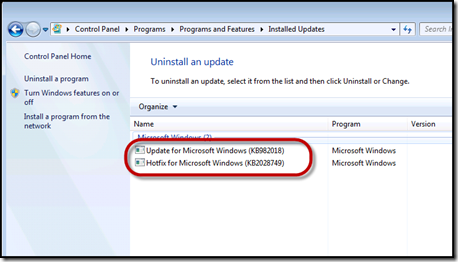
Here we can see them installed on a system I deployed my captured image to.